VS Code Extension
Ollama
Local AI
Privacy First
I built Local AI Connect because I wanted the power of modern LLMs in my editor without sacrificing my privacy. It's a VS Code extension that connects directly to your local Ollama instance—giving you persistent chat, code-aware context, and agent tools—all fully offline, private, and free.
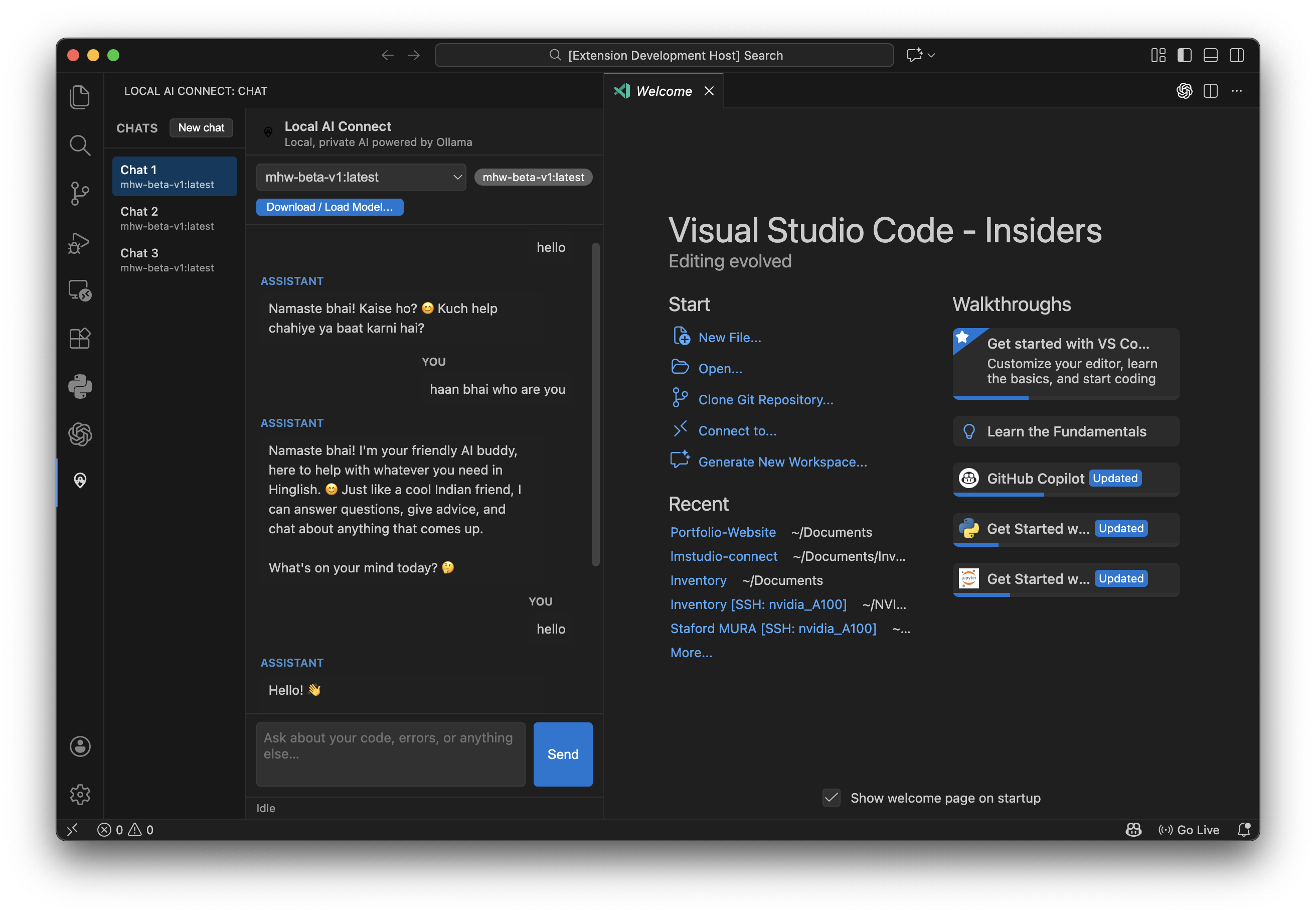

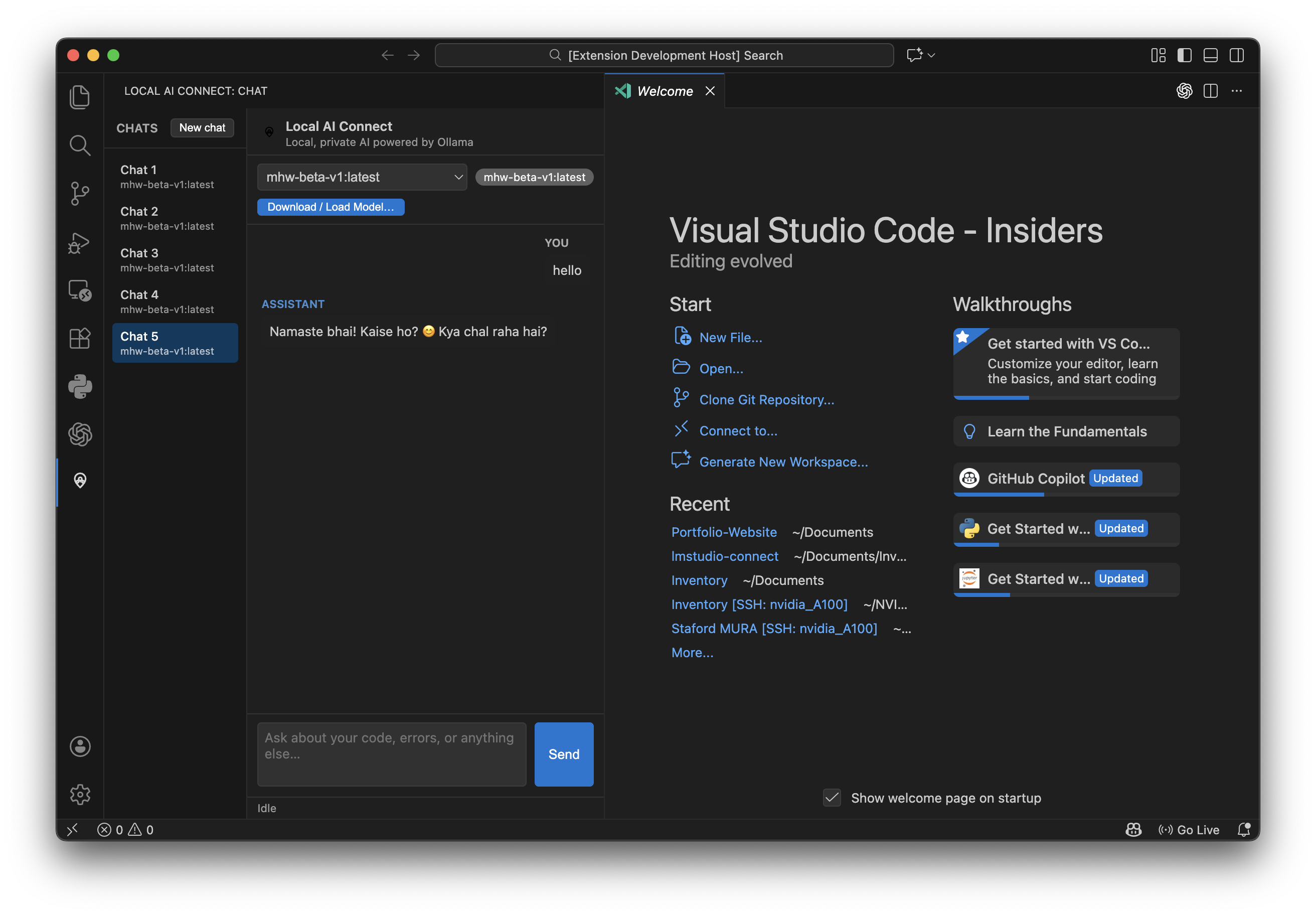
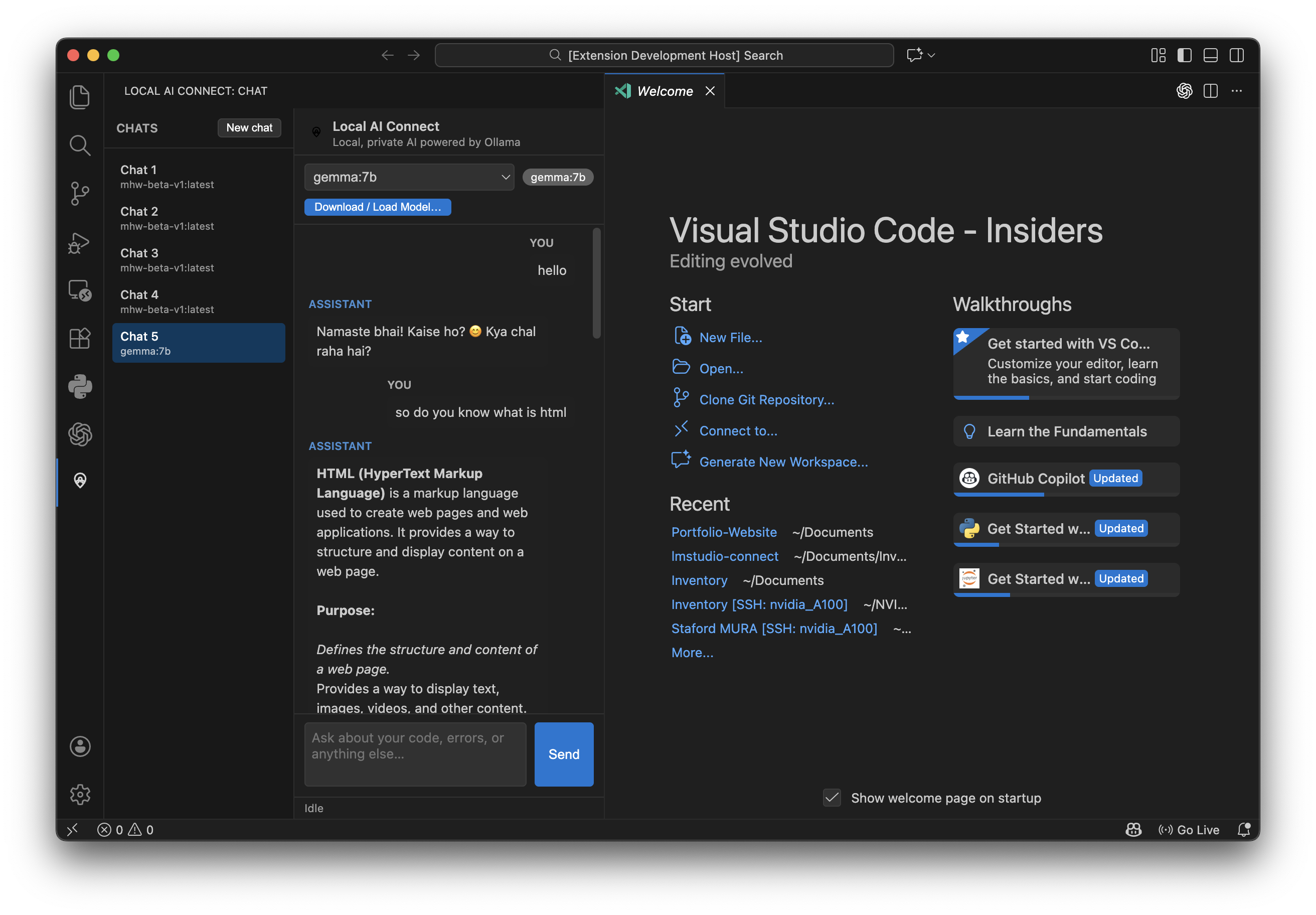
✨ Features
Multi-Session Chat
Create multiple chat threads (e.g., "Bug Fix", "Feature Idea") and switch between them instantly. History is saved automatically.
Context Awareness
The chat knows what file you are working on. Select code to ask specific questions, or let it read the whole file context.
⚡ Streaming Responses
Fast, real-time token streaming from local models like Gemma 2, Llama 3, and Mistral.
🛠️ Agent Tools
Dedicated commands to Explain, Refactor, and Generate Tests for your current file.
🚀 Future Research & Goals
The next phase for Local AI Connect focuses on specialized vertical domains, specifically robotics and system engineering.
ROSAI Integration
Fine-tuning language models specifically on ROS (Robot Operating System) documentation, message definitions, and C++/Python boilerplate.
Robotics Automation
Building agentic workflows where the LLM can generate, debug, and simulate ROS nodes and launch files directly within the workspace.
📅 Project Timeline
-
Dec 2025
Local AI Connect v0.1 Prototype
First working VS Code extension that connects to a local Ollama instance and streams chat responses inside the editor. -
Dec 2025
Multi-session chat + context Editor-Aware
Added named chat threads and code selection context so the model can reason about specific files and snippets. -
Dec 2025
Refactor & Explain commands UX
Introduced one-click commands to explain code, refactor functions, and generate tests directly from the command palette.
⚙️ Getting Started
1. Install Ollama (required)
Download and install Ollama from ollama.com. This extension only supports Ollama as the backend.
2. Pull a Model
Open your terminal and pull a model. We recommend Gemma 2 for a great balance of speed and quality:
ollama pull gemma2:2bOr try others like llama3, mistral, or codellama.
3. Start Chatting
- Open VS Code.
- Click the Local AI Connect icon in the Activity Bar.
- Select your model from the dropdown.
- Type a message!
🔧 Configuration
| Setting | Default | Description |
|---|---|---|
lmstudio.apiUrl |
http://127.0.0.1:11434/v1 |
The URL of your local Ollama server. |
lmstudio.model |
gemma2:2b |
The default model to use for new chats. |